Proxies & Webhooks
Two resources are shared across every module and live under Setup in the sidebar: Proxies and Webhook Groups. Everything else a task needs — login accounts, attendee/buyer details, promo codes — is now managed inside each module (see Per-module resources below).
Proxies
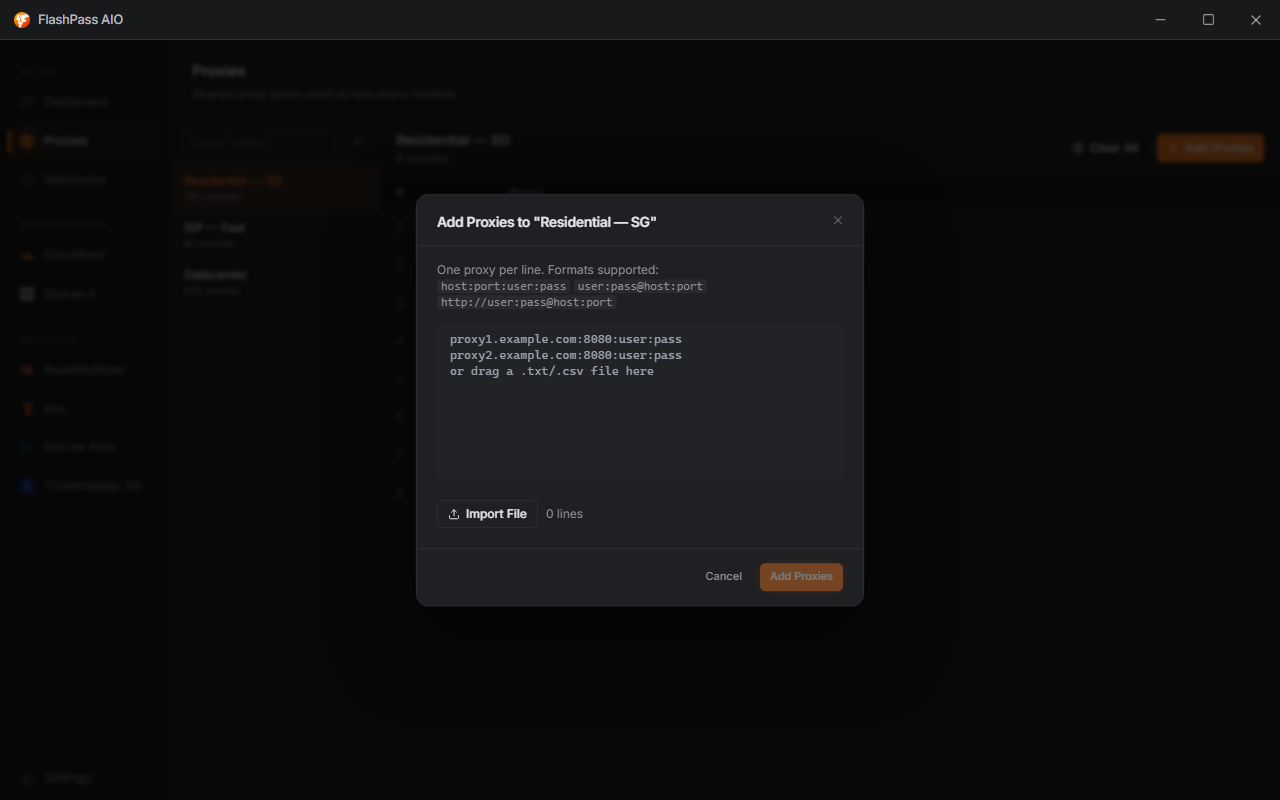
Proxies page — add proxies and organize them into named Proxy Groups. A task references a Proxy Group; FlashPass rotates proxies from that group per run.
To add proxies: select a group → Add Proxies → paste one proxy per line (or drag-and-drop a .txt/.csv file). Supported formats:
host:port:user:pass
user:pass@host:port
http://user:pass@host:port
Every module's Proxy Group field is optional — leave it on Default proxy to fall back to the Default Proxy URL set in Settings → General.
Webhook Groups
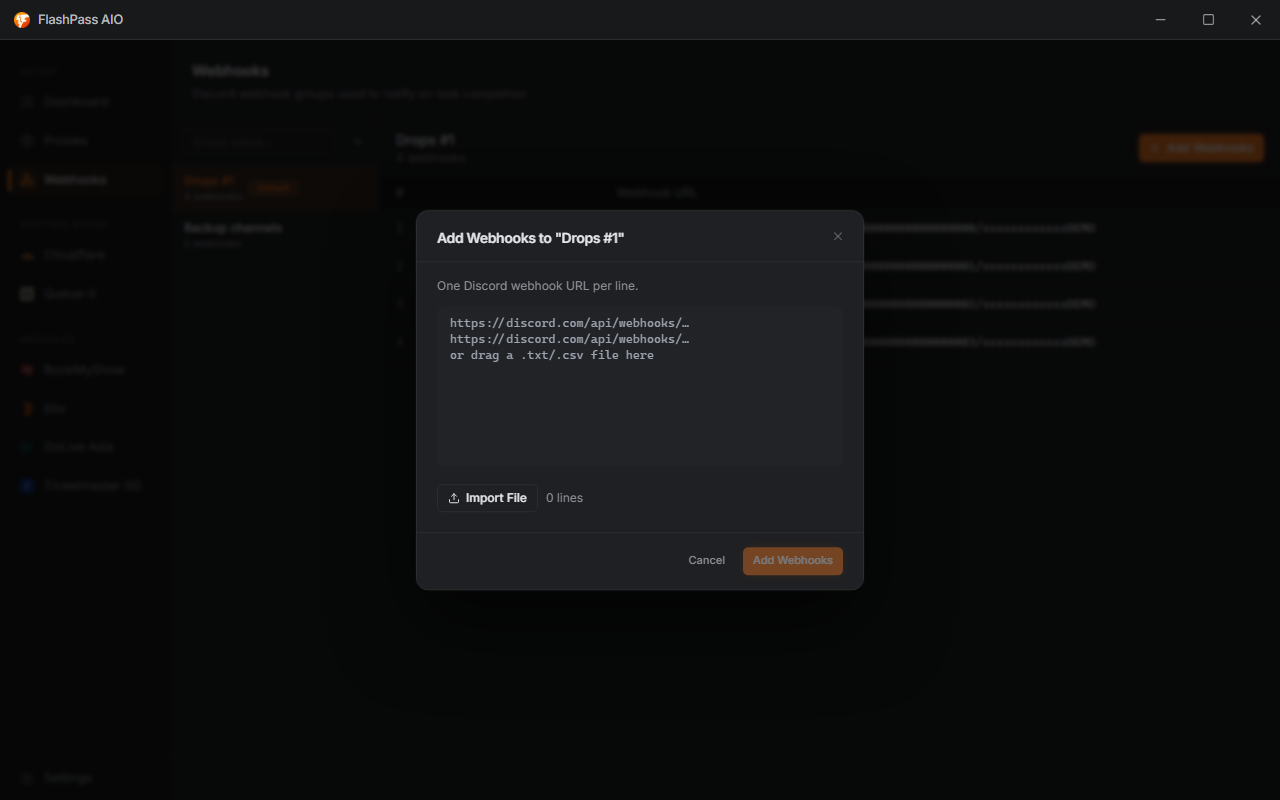
Webhook Groups page — Discord webhook URLs FlashPass uses to deliver pass/hold links. Each successful session randomly picks one webhook from the assigned group, spreading deliveries across multiple Discord channels instead of flooding one.
Every module has an optional Webhook Group selector on its Create Task form. It's required for QueueIt and CF Waiting Room (their only delivery path is the webhook) and optional everywhere else.
To add webhooks: select a group → Add Webhooks → paste one Discord webhook URL per line (or drag-and-drop a file).
Per-module resources
Accounts, attendees, and promo codes used to live on their own shared pages. They're now managed within the module that uses them, opened from a manager button on that module's page:
| Resource | Where it lives now | Used by |
|---|---|---|
| Login accounts (Account Groups) | Manager on the module page — import CSV email:password:proxy, one per line | GoLive, Ticketmaster SG |
| Attendee presets (buyer/checkout identity) | GoLive's Attendee manager — name, email, phone, country/calling code, ID/NRIC, address | GoLive |
| Promo codes (Promo Code Groups) | GoLive's promo manager; Etix takes a single promo inline | GoLive, Etix |
No payment/card details are stored anywhere — payment is always handled on the ticketing platform's own checkout.